There is no space allowed between the language number
/L20 and the language name in double quotes.
There is no space allowed between the color group number
/C1 and the color group name in double quotes.
I have corrected these syntax mistakes in the attached improved syntax highlighting file
thinkscript.uew.
The character
& should be avoided in names as that causes troubles in the theme file (XML file) because of
& has a special meaning in XML syntax and requires to be replaced by the entity
& in an XML file like the theme file. I replaced therefore
& in color group names by
+.
There was twice
/C10 as I could see quickly after opening the
Function List view listing the color groups once being correct defined without a space after the color group number. Second
/C10 is now
/C11 and
/C11 is now
/C12.
I added also the color groups
/C13"Operators
" and
/C14"Braces
".
The
/Delimiters = line is moved up to be the second line in the wordfile. I added a normal space and a horizontal tab character. This list of characters define for the UltraEdit syntax highlighting engine which characters are word delimiters. In other words it defines which characters are
not word characters for this syntax highlighting language. Each word delimiter cannot be part of a word definition in the color groups below with the exception of the character itself is the entire word or as special exception the first character of a word in a color group can be also a word delimiter, but no other character of a word in a color group.
I do not know what should be the purpose of this block in the wordfile and removed it therefore completely:
Code: Select all
Integer with - + or nothing in front
syn match tsNumber '\<\d\+'
syn match tsNumber '[-+]\d\+'

Floating point number with decimal no E or e (+,-)
syn match tsNumber '\<\d\+\.\d*'
syn match tsNumber '[-+]\d\+\.\d*'

Floating point like number with E and no decimal point (+,-)
syn match tsNumber '[-+]\=\d[[:digit:]]*[eE][\-+]\=\d\+'
syn match tsNumber '\<\d[[:digit:]]*[eE][\-+]\=\d\+'

Floating point like number with E and decimal point (+,-)
syn match tsNumber '[-+]\=\d[[:digit:]]*\.\d*[eE][\-+]\=\d\+'
syn match tsNumber '\<\d[[:digit:]]*\.\d*[eE][\-+]\=\d\+'

syn region tsString start='"' end='"'

syn match tsComment "#.*$"

hi def link tsReservedWords             Keyword
hi def link tsDeclarations              PreProc
hi def link tsFunctions                 Identifier
hi def link tsConstants                 Constant
hi def link tsNumber                    Number
hi def link tsComment                   Comment
hi def link tsString                    String

let b:current_syntax = "thinkscript"
The syntax highlighting engine of UltraEdit automatically highlights every word beginning with a digit 0-9 with the predefined color group
Numbers. If floating point numbers should be entirely highlighted as number, the dot character should be removed from the
/Delimiters = line to get the dot interpreted as word character and not as word delimiter.
I executed next the macro
SortLanguage for correcting sorting the words in the color groups.
I played also the macro
TestForDuplicate reporting:
Code: Select all
Sorry! Found following duplicate words:

Min -> in /C6
MIN -> in /C12

color -> in /C10
Color -> in /C12

alert -> in /C11
Alert -> in /C12

tickSize -> in /C11
TICKSIZE -> in /C12
The syntax highlighting language is declared as being case-insensitive with
Nocase in the first line. Therefore these words are indeed duplicates and I removed the duplicate word from the color group with the higher color group number. While for the syntax highlighting engine the word in the color group with the lower color group number matters, it could be nevertheless useful to add the duplicate words to the other color groups in case of using the
Auto-complete feature to get, for example, after typing
tick suggested automatically or after pressing
Ctrl+Space the language keywords
tickSize and
TICKSIZE after adding
TICKSIZE back to
/C12"Constants
" to line
THREE_DAYS TICK TIME TWO_DAYS which becomes
THREE_DAYS TICK TICKSIZE TIME TWO_DAYS.
The macro
TestForInvalid found no invalid word definition which means a word in a color group containing a word delimiter.
The color and font style for each color group must be configured in the
Manage Themes dialog window on tab
Syntax for the language
Thinkscript (language name as defined in the wordfile with
/L20"Thinkscript
").
In ribbon mode click on ribbon tab
Layout in the first group
Look and feel on second command
Themes for opening the
Manage Themes dialog window. In toolbar/menu mode with contemporary menus click in menu
Layout in submenu
Themes on first menu item
Manage themes. In toolbar/menu mode with traditional menus click in menu
View in submenu
Themes on first menu item
Manage themes…. Each color and font style change made in the
Manage Themes dialog window on tab
Syntax for language
Thinkscript is immediately applied on the syntax highlighting of an opened
Thinkscript script file displayed below the
Manage Themes dialog window.
I noticed that the
javascript.uew as installed by default has also the file extension
TS in the first line after
File Extensions =. That was the reason why I saw in status bar at the bottom
JavaScript instead of
Thinkscript as I saved the new file with the
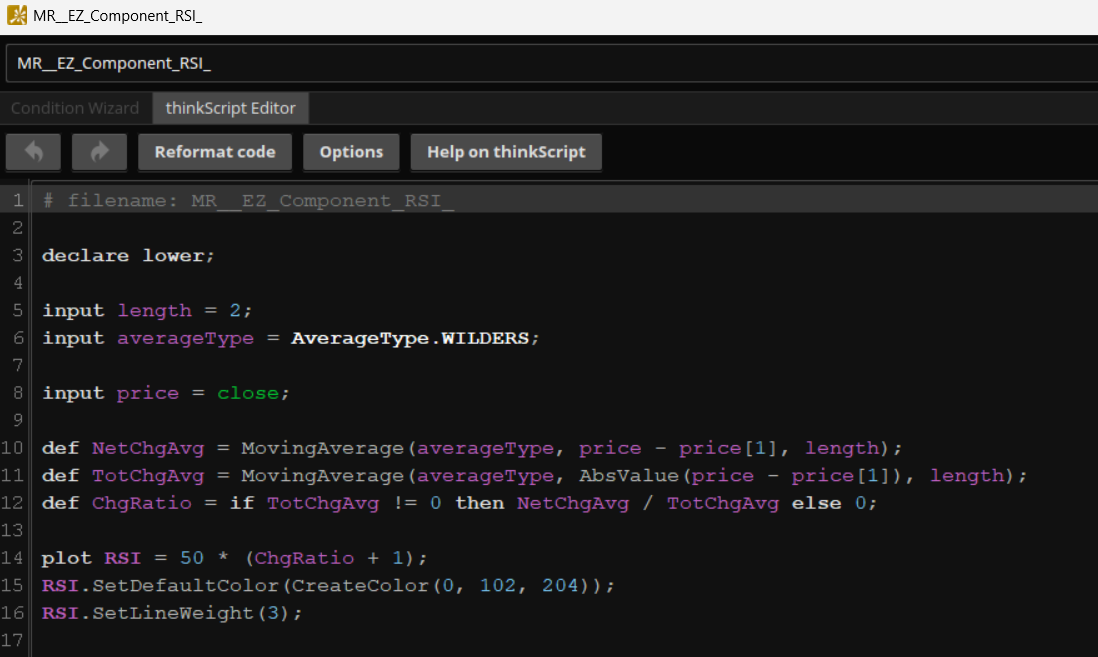
Thinkscript code posted by you as
Test.ts. I needed to remove the file extension
TS from
%APPDATA%\IDMComp\UltraEdit\wordfiles\javascript.uew to get files with file extension
TS syntax highlighted according to
%APPDATA%\IDMComp\UltraEdit\wordfiles\thinkscript.uew. The deletion of
javascript.uew is also possible on never needed.
Extracting
thinkscript.uew from the attached ZIP file into the directory
%APPDATA%\IDMComp\UltraEdit\wordfiles\ and (re-)starting UltraEdit makes it possible to configure at
Advanced - Settings or Configuration - Editor display for
Highlight new file as the language
Thinkscript as defined in the improved
thinkscript.uew.
I added also open/close brace string definitions because
() and
[] are definitely used in
Thinkscript language according to reference manual. I am not sure if
{} are also used in
Thinkscript language but added these braces too.
I added also
# to the
/Delimiters = list because this character is the beginning of a line comment and is therefore for sure a word delimiter, too.